Tips for Migrating SAP IDoc Reception Workloads from BizTalk to Azure Logic Apps

Introduction

The Azure Logic Apps’ SAP Connector provides a trigger named “When a message is received”, which allows receiving IDoc messages and initiating a Logic App workflow – similar to how a BizTalk Receive Location triggers a process, either through orchestration or messaging.

When migrating workloads, avoiding the reimplementation or modification of existing code is key to reducing regression risk. In most integration scenarios, incoming messages are transformed—often using BizTalk maps, which ultimately rely on XSLT. In many cases, BizTalk developers bypass the visual mapper and write XSLTs directly.

Let’s take note of the typical XML structure of an IDoc received in BizTalk:

<Receive xmlns="ReceiveNamespace">
  <idocData>
    <EDI_DC40 xmlns="IDocNamespace">
		<TABNAM xmlns="CommonNamspace">EDI_DC40</TABNAM>
		...
    </EDI_DC40>
    <IDOC_ROOT xmlns="IDocNamespace">
		...
    </IDOC_ROOT>
  </idocData>
</Receive>

Wouldn’t it be ideal to reuse existing BizTalk XSLTs as-is? Let’s explore how to achieve that.

SAP trigger “When a message is received”

The SAP connector “When a message is received” trigger offers several parameters that are not thoroughly documented. Based on experience, I will present the combination of parameters that facilitates the reuse of BizTalk XSLTs.

IDoc Format Options

When configuring the trigger, the first parameter to set is “IDoc Format”, which offers three options:

  • FlatFile
  • SapPlainXml
  • MicrosoftLobNamespaceXml

Since BizTalk is XML-centric and the goal is to reuse existing XSLTs, the relevant Idoc Format choices are SapPlainXml and MicrosoftLobNamespaceXml.

Let’s explore the behavior of each.

Option 1: SapPlainXml

When selecting the SapPlainXml IDoc format, the received IDoc is structured as XML without any namespace and without a <Receive> wrapper element:

<IdocTypeName>
	<IDOC BEGIN="1">
		<EDI_DC40 SEGMENT="1">
			...
		</EDI_DC40>
		<IDOC_ROOT SEGMENT="1"/>
	</IDOC>
</IdocTypeName>

This structure differs from what BizTalk expects, so existing XSLTs would require adjustments to be reused.

Option 2: MicrosoftLobNamespaceXml

When selecting the MicrosoftLobNamespaceXml IDoc format, the IDoc message is received in XML that closely matches the BizTalk structure. However, the namespaces are slightly different—specifically, the release number is missing.

For example, the Receive namespace might appear as:

http://Microsoft.LobServices.Sap/2007/03/Idoc/3/IDOCTYPENAME///Receive

Whereas in BizTalk it could be:

http://Microsoft.LobServices.Sap/2007/03/Idoc/3/IDOCTYPENAME//740/Receive

As a result, existing XSLTs will still require some namespace updates.

Option 3: MicrosoftLobNamespaceXml + Generate Namespace From Control Record = Yes

When selecting the MicrosoftLobNamespaceXml IDoc format and enabling the advanced parameter “Generate Namespace From Control Record”, the received message includes both the correct structure and the expected namespace, including the release number. This makes it compatible with BizTalk’s structure and allows direct reuse of existing XSLTs.

Here is how these parameters are presented in the worflow designer:

Note: In the Logic App code view, the “Generate Namespace From Control Record” parameter appears as EnforceControlRecordNamespace.
Example snippet from the code view:

{
  "type": "ServiceProvider",
  "inputs": {
    "parameters": {
      "idocFormat": "MicrosoftLobNamespaceXml",
      "DegreeOfParallelism": 10,
      "GatewayHost": "dummy",
      "GatewayService": "dummy",
      "ProgramId": "dummy",
      "EnforceControlRecordNamespace": true
    },
    "serviceProviderConfiguration": {
      "connectionName": "sap",
      "operationId": "SapTrigger",
      "serviceProviderId": "/serviceProviders/sap"
    }
  }
}

Conclusion

To ensure maximum compatibility with BizTalk and reuse existing XSLT artifacts with minimal changes, configure the SAP Logic App trigger as follows:

  • IDoc Format: MicrosoftLobNamespaceXml
  • Generate Namespace From Control Record: Yes (or EnforceControlRecordNamespace: true in code view)

This setup preserves the BizTalk-style message structure and namespace conventions, enabling a smoother migration path.

Bug When Generating Schemas for SAP IDocs Using the Logic App Built-In Connector

When integrating SAP with Azure Logic Apps, one of the first steps is to obtain XSD schemas that describe the structure of SAP artifacts like IDocs and RFCs. These schemas are essential for building workflows that send or receive data from SAP.

To generate these schemas, you typically create a Logic App Standard workflow and use the Generate Schema action from the SAP built-in connector. This action introspects the connected SAP system and produces the necessary schema files based on the selected artifact.

For an IDoc, we must provide:

  • The IDoc Type
  • The Release number
  • The Version number
  • The Direction to specify if we intend to send or receive the IDoc.

Bug Description

While migrating existing workload from BizTalk Server to Azure Logic Apps, we noticed inconsistencies when generating IDoc schemas via the “Generate Schema” Logic App action.
Specifically, when comparing introspection results between the “Generate Schema” action from Logic App and the “Consume Adapter Service” wizard of the BizTalk Server Extension for Visual Studio 2019, we noticed that:

  • Some schemas differed in their structure. E.g. Some element names were different or missing altogether.
  • The schemas XML namespaces were different. E.g. When introspecting the ALE AUDIT IDoc type, the “Generate Schema” action returned:
    http://Microsoft.LobServices.Sap/2007/03/Types/Idoc/3/ALEAUD01//30C
    instead of:
    http://Microsoft.LobServices.Sap/2007/03/Types/Idoc/3/ALEAUD01//731

Upon further investigation, it became evident that the Logic App’s Generate Schema action does not respect the specified release number for the IDoc. Instead, it appears to return the schema for the first available release,  resulting in inaccurate schemas.

We raised this issue with Microsoft Support, and the Logic Apps Product Group confirmed the behavior as a bug. They acknowledged that the release parameter is currently ignored by the connector, and a fix is planned for deployment across Azure.

Temporary Workaround

Until the fix is deployed, our current workaround is to continue using schemas generated by the BizTalk Server Extension for Visual Studio. It provides reliable and accurate schema definitions that align with the intended IDoc version and release.

Unit Testing Low Code Logic Apps Standard Workflows

Microsoft recently introduced, in preview, the ability to create unit tests for Logic Apps Standard workflows defined in an MSTest project.

This significantly improves the development experience when writing and maintaining low-code Logic Apps workflows. It enables developers to:

  • Write tests in C# using tools integrated into the IDE via the Logic Apps Standard VS Code extension. Writing tests in C# is crucial as it allows the use of custom utilities and useful NuGet packages.
  • Execute tests in a CI/CD pipeline.

Both practices are well-known to developers and are considered industry best practices. Without automated testing, teams risk undetected bugs, slower feedback loops, longer release cycles, and compromised software quality.

This new feature offers a more robust approach to developing and testing Logic Apps workflows, which is likely to boost its adoption.

Microsoft provides documentation on creating unit tests for workflows in VS Code, either from the workflow definition or from a workflow run. I won’t repeat the details here, but the main points are:

  • The unit of testing is the entire workflow, with mock objects injected into it.
  • The unit test wizard generates mock types for the workflow’s trigger and actions that depend on external systems (e.g., HTTP, Service Bus, Files, SAP, etc.).
  • Mock object instances can be created either programmatically in C# or in a mock definition JSON file. The latter being a serialization of the Mock objects. Note that when creating unit test from a workflow run, the JSON file is generated by the unit test wizard with data taken from the run instance.
  • Unit tests are written as C# methods decorated with the [TestMethod] attribute.

Implementing Negative Tests

For the workflow I wrote unit tests for, I did not encounter any limitations for happy path scenarios. However, I quickly came across a limitation when writing negative tests.

To illustrate this, let’s consider the simple workflow below, which calls an HTTP endpoint through the HTTP Action. Depending on the success or failure of this call, the business process takes different paths. To simplify the illustration, I replaced these different paths with returning different responses in the Response actions.

When generating unit tests from a successful run, the wizard creates a negative test like this:


[TestMethod]
public async Task GetGreetings_GetGreetingsSuccess_ExecuteWorkflow_FAILED_Sample3()
{
    // PREPARE
    var mockData = this.GetTestMockDefinition();
    var mockError = new TestErrorInfo(code: ErrorResponseCode.BadRequest, message: "Input is invalid.");
    mockData.ActionMocks["HTTP"] = new HTTPActionMock(status: TestWorkflowStatus.Failed, error: mockError);

    // ACT
    var testRun = await this.TestExecutor
        .Create()
        .RunWorkflowAsync(testMock: mockData).ConfigureAwait(false);

    // ASSERT
    Assert.IsNotNull(testRun);
    Assert.AreEqual(TestWorkflowStatus.Failed, testRun.Status);
}

Note that the HTTPActionMock type models the mock for the workflow’s HTTP action. The code above overrides the ActionMock for the HTTP action loaded from the JSON file with a mock having its status set to Failed instead of Succeeded. As the HTTP action is now set to fail, it will cause the entire workflow to fail.

Now, let’s imagine that I want to enhance the test and ensure that when the HTTP action fails, the “Response OK” action does not run, and the “Response Failure” action runs instead. To implement this, I can simply add:


Assert.AreEqual(expected: TestWorkflowStatus.Skipped, actual: testRun.Actions["Response_OK"].Status);
Assert.AreEqual(expected: TestWorkflowStatus.Succeeded, actual: testRun.Actions["Response_Failure"].Status);

These asserts will ensure that I have implemented my business logic correctly and also acts as a regression test to detect if a breaking change is introduced later on.

Current Limitations

Current Limitation with Negative Testing

In more complex scenarios, business logic might depend on the actual content of the error response returned by the HTTP call. For example, a web API might return specific error codes.

I expect to implement such a scenario by overriding the Action Mock for the HTTP action with:

  • A failed status
  • An output for the mock with the specific payload returned by the HTTP action

I tried defining this in C#:


var actionOutput = new HTTPActionOutput
{
    Body = new JObject { ["errorCode"] = "009" },
    StatusCode = HttpStatusCode.BadRequest
};

var httpFailedActionMock = new HTTPActionMock(
    status: TestWorkflowStatus.Failed,
    outputs: actionOutput
);

mockData.ActionMocks["HTTP"] = httpFailedActionMock;

But this causes the TestExecutor to throw the following exception:

The workflow '' associated with unit test '' has action mock 'HTTP' that should have non empty error message when status is set to 'Failed'.

The only way to prevent the exception is to use a constructor that takes a TestErrorInfo object — but this constructor does not allow passing a custom HTTP response payload, which prevents me from implementing my test scenario.

Even trying to bypass this limitation by editing the JSON file directly did not work:

"actionMocks": {
  "HTTP": {
    "name": "HTTP",
    "status": "Failed",
    "outputs": {
      "statusCode": 400,
      "body": {
        "errorCode": "009"
      }
    },
    "error": {
      "Code": "BadRequest",
      "Message": "The request is invalid."
    }
  }
}

Current Limitation with MSTest project

As of now, the MSTest project must target .NET 6.0, which is no longer supported by Microsoft. Although this code is only used for testing and not deployed to production, some company security policies may still flag it. Static analysis tools like SonarQube, Snyk, and others might raise alerts due to the use of an unsupported framework, requiring documented exceptions and justification.

Conclusion

Given that this is the initial public preview, I’m satisfied with the current capabilities and have provided feedback to Microsoft, expressing hope for improvements in negative test handling and support for a more recent version of .NET.

← Back

Thank you for your response. ✨

Solving Error : BAM deployment failed : The locale identifier (LCID) 8192 is not supported by SQL Server

When trying to deploy a BAM activity on a BizTalk Server 2020 machine, I had the following error: BAM deployment failed : The locale identifier (LCID) 8192 is not supported by SQL Server

Error Description

The following BAM command:

bm deploy-all -DefinitionFile:MyActivity.xml

Returns the following error:

Deploying Activity… ERROR: The BAM deployment failed.
A .NET Framework error occurred during execution of user-defined routine or aggregate "deploy_project_internal":
System.Data.SqlClient.SqlException: The locale identifier (LCID) 8192 is not supported by SQL Server.
System.Data.SqlClient.SqlException:
at System.Data.SqlClient.SqlConnection.OnError(SqlException exception, Boolean breakConnection, Action1 wrapCloseInAction) at System.Data.SqlClient.SqlInternalConnectionSmi.EventSink.DispatchMessages(Boolean ignoreNonFatalMessages) at System.Data.SqlClient.SqlDataReaderSmi.InternalNextResult(Boolean ignoreNonFatalMessages) at System.Data.SqlClient.SqlDataReaderSmi.NextResult() at System.Data.SqlClient.SqlCommand.RunExecuteReaderSmi(CommandBehavior cmdBehavior, RunBehavior runBehavior, Boolean returnStream) at System.Data.SqlClient.SqlCommand.RunExecuteReader(CommandBehavior cmdBehavior, RunBehavior runBehavior, Boolean returnStream, String method, TaskCompletionSource1 completion, Int32 timeout, Task& task, Boolean& usedCache, Boolean asyncWrite, Boolean inRetry)
at System.Data.SqlClient.SqlCommand.RunExecuteReader(CommandBehavior cmdBehavior, RunBehavior runBehavior, Boolean returnStream, String method)
at System.Data.SqlClient.SqlCommand.ExecuteScalar()
at Microsoft.SqlServer.IntegrationServices.Server.ServerConnectionControl.GetServerProperty(String propertyName)
at Microsoft.SqlServer.IntegrationServices.Server.ServerConnectionControl.GetSchemaVersion()
at Microsoft.SqlServer.IntegrationServices.Server.ISServerExecArgumentBuilder.ToString()
at Microsoft.SqlServer.IntegrationServices.Server.ServerApi.DeployProjectInternal(SqlInt64 deployId, SqlInt64 versionId, SqlInt64 projectId, SqlString projectName)

After a little bit of Googling, I found someone having a different issue but with what looked like the same root cause (see Marc van der Wielen blog post here).
I detail the solution here again in case that one day Marc’s blog goes down. All credit goes to him.

Error root cause

The root cause of the problem is that the Service Account running the SQL Server instance is using an (apparently) unsupported locale setting.

In my case, my Windows 10 machine is configured with en-BE (English-Belgium) locale. I installed MS SQL Server with mostly all default options. By doing so, the Service Account created by the installer took the en-BE locale setting.
Once I changed the locale setting of the Service Account to en-US, the error hereabove disappeared.
It looks like while SQL Server did run fine for everything so far, it needs to have the local settings of the Service Account set to en-US for some specific functionalities to work properly (such as publishing a BizTalk BAM Activity in my case).

Resolution Procedure

1. Find what is the Service Account running the MS SQL Server service.
We can find that easily by running services.msc from a prompt.
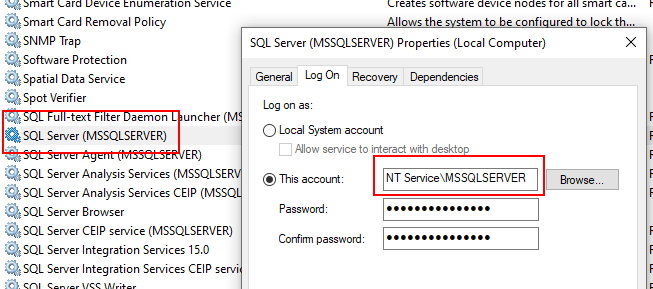
When we find the SQL Server service, we can just look at its properties to see the name of the Service Account used to run it:

Finding SQL Server Service Account Name

2. Find the SID (Security Identifier) of the Service Account.
One way to do this is through the registry:
– Open the registry by running regedit from a prompt.
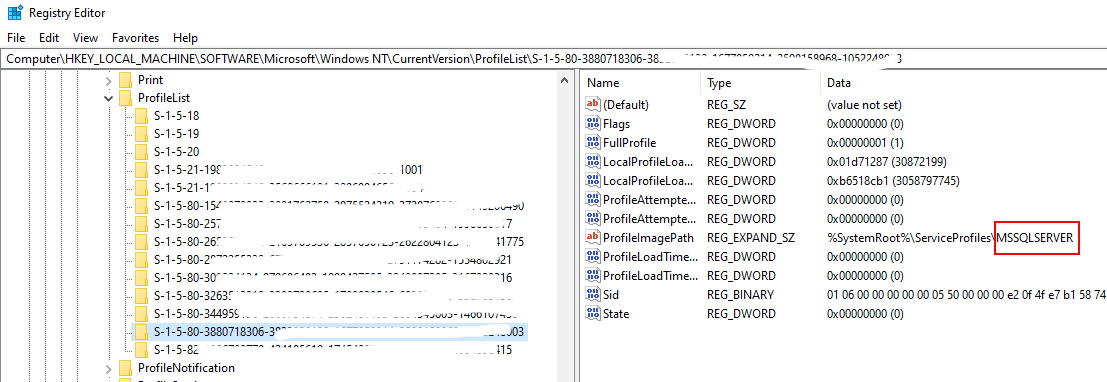
– Once in the registry editor, navigate to the following registry node: Computer\HKEY_LOCAL_MACHINE\SOFTWARE\Microsoft\Windows NT\CurrentVersion\ProfileList
– The registry node contains a list of nodes having SIDs as name. Find the node for which the ProfileImagePath‘s entry contains the MSSQLSERVER value. Write down the SID, in my case it is S-1-5-80-3880718306-xxxxx.

Another way to find the SID is to use PowerShell:
The PowerShell command is slightly depending of the type of account running the SQL Service (local account or domain account), see details here.

For local accounts:
>$objUser = New-Object System.Security.Principal.NTAccount("NT Service\MSSQLSERVER")
>$strSID = $objUser.Translate([System.Security.Principal.SecurityIdentifier])
>$strSID.Value

For Domain account we get the NTAccount object in the following way:
>$objUser = New-Object System.Security.Principal.NTAccount(DOMAIN_NAME, USER_NAME)

3. Change the Service Account locale setting.
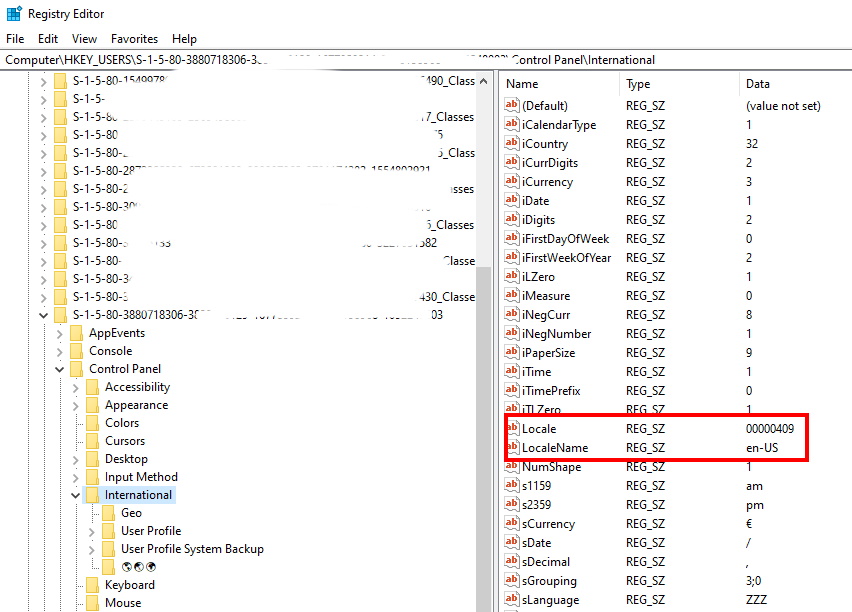
Navigate to the following registry node folder (using your own SID from the previous step): Computer\HKEY_USERS\S-1-5-80-3880718306-xxx\Control Panel\International.
– Set the Locale entry value to “00000409
– Set the LocalName entry value to “en-US
– Restart the SQL Server Service.

Set SQL Server Service Account Locale

Setting the local setting for new user accounts to be of a particular locale

To avoid having this kind of issue, it is possible to tell Windows to set the default locale for new accounts. This option is in the Control Panel -> Regions -> Administrative -> Welcome screen and new user accounts.

This is also scriptable. See : https://docs.microsoft.com/en-US/troubleshoot/windows-client/deployment/automate-regional-language-settings

BizTalk WCF Metadata Only MEX Endpoint Error: Root element is missing

In a BizTalk 2016 application, I have a receive location using the WCF-NetTcp adapter. The receive location is using an in-process Receive Handler and so I used the BizTalk WCF Service Publishing Wizard to publish a Service Metadata Endpoint (MEX) hosted in IIS so that clients can retrieve the WSDL of the web service exposed.
Note that typically, a BizTalk isolated host is an IIS Application Pool instance: w3wp.exe.

Endpoint error: Root element is missing

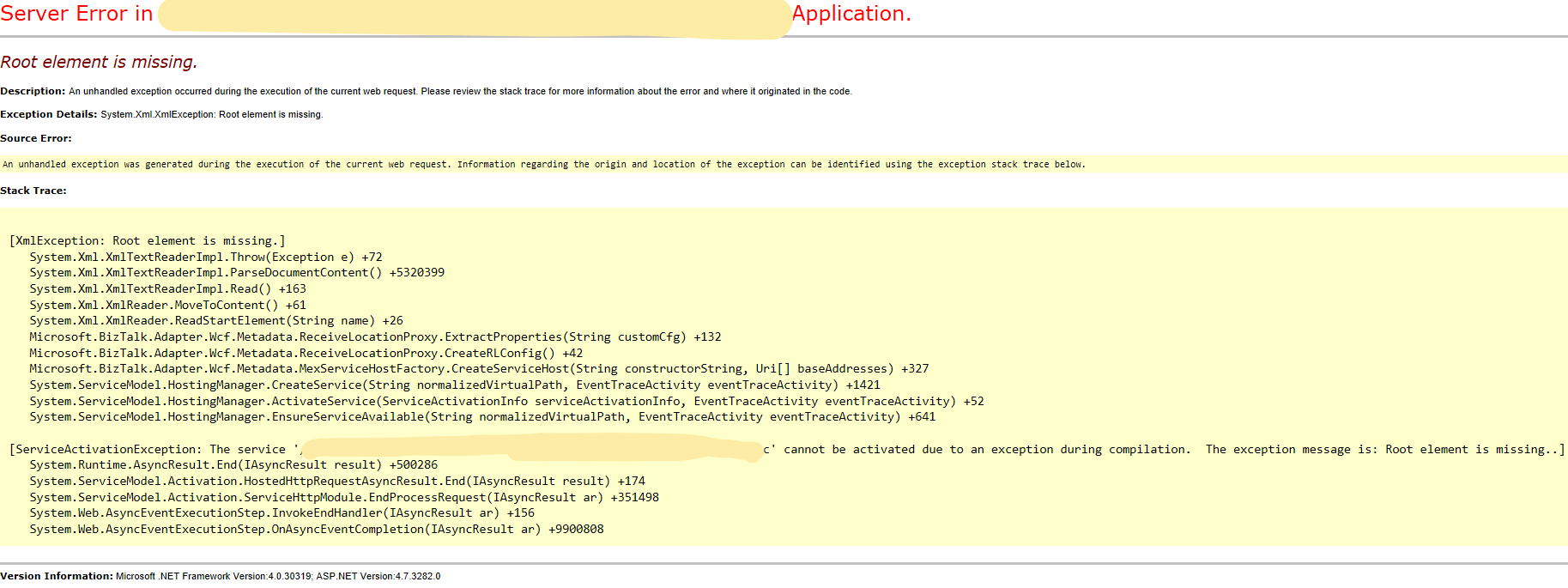
Once the MEX endpoint is deployed in an IIS application, I saw the following error when browsing to the endpoint:

Server Error in ‘xxx’ Application.
Root element is missing. 
Description: An unhandled exception occurred during the execution of the current web request. Please review the stack trace for more information about the error and where it originated in the code. 
Exception Details: System.Xml.XmlException: Root element is missing.
Source Error: 
An unhandled exception was generated during the execution of the current web request. Information regarding the origin and location of the exception can be identified using the exception stack trace below.

Windows Event Log Analysis

When looking at my Windows Event Log, I saw the following error:

Server Error in ‘xxx’ Application.
WebHost failed to process a request.
Sender Information: System.ServiceModel.ServiceHostingEnvironment+HostingManager/4032828
Exception: System.ServiceModel.ServiceActivationException: The service ‘xxx.svc’ cannot be activated due to an exception during compilation. The exception message is: Root element is missing.. —> System.Xml.XmlException: Root element is missing.
at System.Xml.XmlTextReaderImpl.Throw(Exception e)
….
Process Name: w3wp

I looked further down in my event log and saw a series of warnings from the Enterprise SSO service with messages of the likes:

SSO AUDIT
Function: GetConfigInfo ({CB480FD2-902B-4F1E-A2DB-43B3954A341B})
Tracking ID: 1c44a765-61a3-4679-901d-f1853fb2f497
Client Computer: BTS2016 (wmiprvse.exe:8432)
Client User: IIS APPPOOL\BizTalkIsolatedHostAppPool
Application Name: {315B6926-BF0C-462D-A8FD-5512F5E41456}
Error Code: 0x80070005, Access is denied.

And:

Access denied. The client user must be a member of one of the following accounts to perform this function.
SSO Administrators: SSO Administrators
SSO Affiliate Administrators: SSO Affiliate Administrators
Application Administrators: BizTalk Server Administrators
Application Users: –
Additional Data: IIS APPPOOL\BizTalkIsolatedHostAppPool {315B6926-BF0C-462D-A8FD-5512F5E41456} WCF-NetTcp_RL_BizTalkServerApplication_{315B6926-BF0C-462D-A8FD-5512F5E41456}

The first thing I noticed in the SSO warnings here above is that they refer to the user “IIS APPPOOL\BizTalkIsolatedHostAppPool” which in my case is the identity of the Application Pool running my WCF Service metadata endpoint.
In IIS 7.5 and above, each Application Pool is by default assigned it’s own virtual account and it’s named using the following pattern: “IIS AppPool\<ApplicationPoolName>” (i.e. this is the name of the virtual account in Windows). In the Application Pool setting, the virtual account name is simply referenced to by setting the identity property to “ApplicationPoolIdentity“.

I already had this account part of the BizTalk Isolated Host Users Windows Group but it seems to not be enough as Enterprise SSO is complaining.

At this stage I did some research and found a clue here but, for security reason, I was not satisfied with having the App Pool Service Account being part of BizTalk Server Administrators Windows Group.
I dug a little deeper and found this interesting blog post. This made me check the BizTalk documentation and it is indeed now documented that BizTalk Host Instance Accounts and BizTalk Isolated Host Instance Accounts must be part of the SSO Affiliate Administrators Windows Group.

Final Solution

Finally, what I did to solve the issue was to add the Application Pool identity to the SSO Affiliate Administrators Windows Group (as it is actually instructed in the BizTalk’s documentation!) and rebooted my machine.

Nevertheless, my personal opinion is that while it is the supported solution documented by Microsoft, the root of the problem lies in the implementation of ISSOConfigStore::GetConfigInfo and that Microsoft should fix that or change the way MEX endpoints retrieve data. Indeed, to me, it does not really make sense that an IIS App Pool should run under an account being an SSO Afiliate Administrator.

Note: I did not have to modify the web.config of the WCF Service MEX endpoint web service generated by the BizTalk WCF Service Publishing Wizard as was mentioned in one of the blog I referenced to:
<system.web>
    <trust level=”Full” originUrl=”” />
</system.web>