New Features in Visual Studio 2008

In this post I will go through some Visual Studio 2008 tools and features I found interesting.

1. Unit Test Tool

In VS 2008, Unit Testing is facilitated through a unit test class code generator.

Unit Testing is the act of having a piece of code which only purpose is to test another piece of code, this code being part of the end product. It is a particularly tedious task, so having a unit test code generator is very handy.

A Unit Test class is used to test a class that is part of the software being built. If every classes of a software has a matching class used to unit test it, all the code will be unit tested. Unit testing is the lowest level of Quality Assurance, it does not test the software as a whole neither on its external functionalities but rather makes sure that any testable piece of code part of the software is behaving as it should.

You should consider doing Unit Testing as:

  • It creates test units to check if the code is producing expected results.
  • It improves code coverage. Code coverage is a number telling how many percent of the code has actually been tested. The higher value the more confident we can be in the quality of the code (as it means that a large part of the code returns expected values).

To generate a Unit Test class in VS 20008, simply right-click on any class definition and select the Create Unit Tests option to call the unit test generator tool.

Visual Studio 2008 - Create Unit Test Class
This will create a Unit Test class in a separated project dedicated for Unit Testing, this way your Unit Test code and the actual code are separated in different projects and so code is neatly kept separated.

Note that if you try to generate a Unit Test Class for a class that has private or internal modifiers, VS2008 will add a special InternalsVisibleTo attribute in your original project so that your Unit Test project (and only that one) has access to all private, internal and protected methods and classes of the original project containing the classes you want to unit test. This means that the attribute is not added at the class level but at the project level in the AssemblyInfo.cs file.

Moreover, as it can be seen hereunder, only the Unit Test project (here called CalculatorTest) will have access to internal classes and methods:

[assembly: System.Runtime.CompilerServices.InternalsVisibleTo(“CalculatorTest”)]

Once the Unit Test classes are generated, you will have to go into them, inspect the code and set input values that will be used to call the methods that need to be tested and also set the expected result value that should be returned by the method. This way, the actual value returned can be compared with the expected value to decide if the test was conclusive or not. There are TODO sections declared in the generated code so that you can easily locate where to set test values.

In the example hereunder, values are set for the length and width of the rectangle and the variable expected contains the pre-calculated area of the rectangle so that we can check if the output of the method is equal to what should be returned. If the value returned by the method is not what is expected, that means that the unit test fail and that there is a bug in the tested method. Visual Studio will clearly show in the test results what unit test succeeded or failed.

Lastly, do not forget to comment out the Assert.Inconclusive() method call.
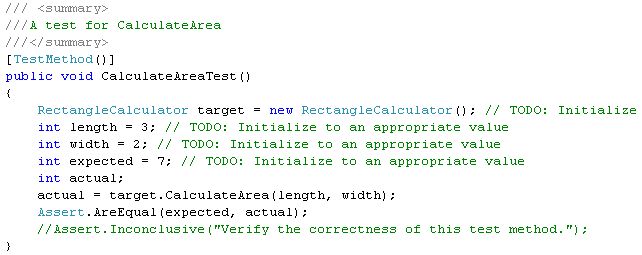
Visual Studio 2008 - Initialize parameter values for Unit Test
The Test project creates a vsmdi file in the solution item folder, named after the solution name, Calculator.vsdmi for a Visual Studio solution called Calculator.

To actually test some or all the unit test methods, open the vsdmi file, select the methods that you want to test, right-click on the list of methods and select Run Checked Tests.
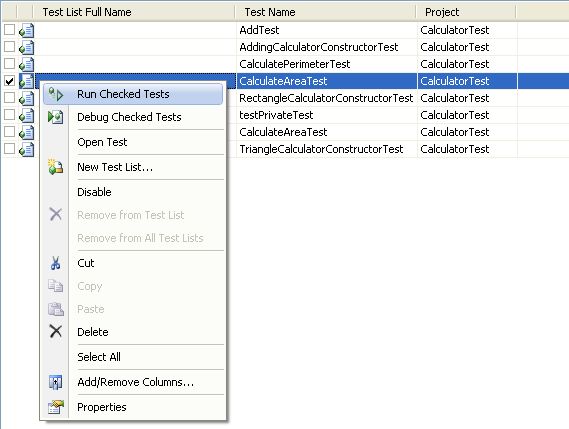
Visual Studio 2008 - Choose Method To Unit Test
Once the test ran, the result will be displayed showing if the test succeeded, failed or was inconclusive.

Visual Studio 2008 - Unit Test Result Window

2. Object Test Bench

If you do not have the time to create full blown Unit Test but still want to test some of your classes and/or methods, there is a quick and dirty way to do it by using the Object Test Bench tool. The tool can call static methods on classes and create object instances of classes so that instance methods can be called ad-hoc. Methods can thus be tested very simply, in a similar way as when you chose to execute a Stored Procedure in SQL Server Management Studio and that a window pops up to let you input the SP parameters.

To use the Object Test Bench, you need first to create Class Diagram of your project. To do so, click on the Class View of your Visual Studio project, select the root namespace of your project, right-click on it and choose the View Class Diagram option.

Visual Studio 2008 - Generate Class Diagram From Source Code
Once the class diagram is created you can call the Object Test Bench tool by either calling a static method on the class or one of the class constructor so that you will be able to call an instance methods after the object is instanciated.

In my case I want to test the Add() method to check if my Calculator object correctly adds numbers. To do so I first instanciate a Calculator object which opens the Object Test Bench window under the class diagram. After the object is created in memory and appears in the Object Test Bench window, I can chose to call any method of the object. I will thus dynamically call the Add() method through the Visual Studio IDE and check if the method returns a correct result.

Visual Studio 2008 - Start Object Test Bench Tool - Create Object Instance
Visual Studio 2008 - Start Object Test Bench Window
A window will pop up so that you can give values to the input parameters.
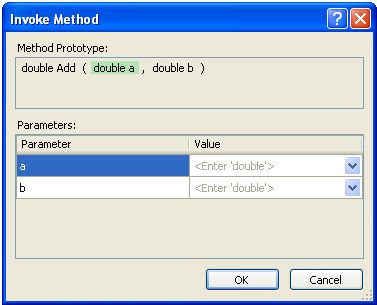
Visual Studio 2008 - Object Test Bench Invoke Method And Set Input Parameters
Once the parameters are entered and you click on OK, a pop up window will display the result. You can choose to save the result in a variable so that you can re-use it later. For example you could re-use the variable as a parameter to call another method that you want to test-bench. This way, in a few clicks, you can create a bunch of objects and then re-use them later to call methods that take complex-type objects as parameter.

Visual Studio 2008 - Object Test Bench Invoke Method Result Window

3. Generate Method Stub (only for C#)

It is a code generation feature that creates methods before they exist; the method created is based on the call to that method. Once the call to the method is made, Visual Studio 2008 IntelliSense will give you the option to generate a method stub matching the call to that method, with the matching input parameters and return type.

Visual Studio 2008 - Generate Method Stub
The generated method will be created in the matching class and its stub implementation will simply throw a NotImplementedException.
Visual Studio 2008 - Generate Method Stub Result
Note that this code generation feature is only available for C#.

4. Refactoring Tools (C# only)

Refactoring is making changes to a body of code in order to improve its internal structure without changing its external behavior.

– Martin Fowler

It is useful concept to make code cleaner and more understandable/readable.

A typical refactoring case is to break up a lengthy method into separate methods. To do so, you can highlight a piece of a code, right-click on it (or go to the Refactor menu of Visual Studio) and choose Extract Method. This will generate a method containing the highlighted code as well as calling the generated method from the original location.

Refactor menu in Visual Studio 2008:

Visual Studio 2008 - Refactor Menu
Refactoring code by creating a method to shorten the original code, it is the action of extracting a method from a piece of code.

Visual Studio 2008 - Refactoring A Method
The example here above will create a method containing the highlighted code and replace the original code by a call to the generated method (which I called WriteLogToConsole):
Visual Studio 2008 - Refactoring, Generated Method

5. The .Net Framework Source Code

It is possible to go through the source code of the .Net Framework while debugging. Here are the steps I did to make it work:

1. Install the hotfix KB 944899 – Visual Studio 2008 performance decreases when you step through source code that you downloaded from Reference Source Server.

2.Configure Visual Studio debugger to be able to step in the .Net Framework Source Code:

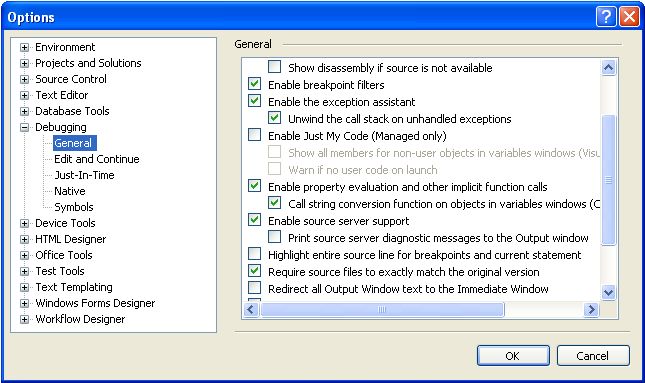
  • Uncheck Enable Just My Code (Managed only).
  • Check Enable source server support.

Visual Studio 2008 - Configuring Visual Studio For Framework Source Code Debugging
3.Configure the Symbols part of the Visual Studio debugger options so that Visual Studio know where to download the .Net Framework debugging symbol (.pdb files) and source code.

  • Set the Symbol file (.pdb) location to be: http://referencesource.microsoft.com/symbols
  • Set a Cache location folder where the .Net Framework pdb and source code files will be stored. Make sure it is a location that your account has read/write access to. For example, a folder under your user hive.
  • Clear the Search the above locations only when symbols are loaded manually if you want that Visual Studio automatically download symbols and source code while you step in .Net Framework code (F11 shortcut key). Note that if your project is big and references many libraries, downloading all the debugging symbols will be slow at the first debug. If you prefer to load symbols only when needed, keep that box checked. You will then have to download debugging symbols and source code on demand by right-clicking the appropriate dll in the stacktrace and choose Load Symbol.

Here is how I configured my Visual Studio:
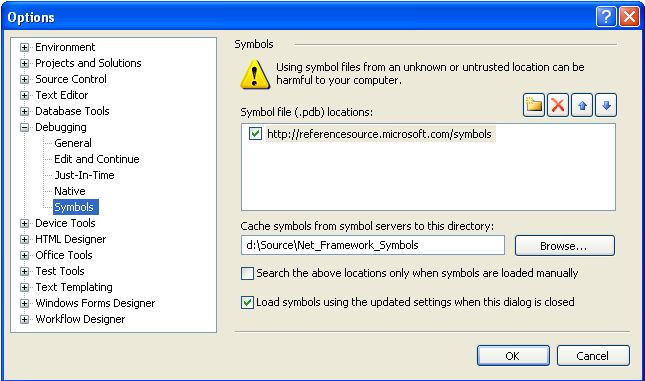
Visual Studio 2008 - Configuring Visual Studio Framework Source Code Symbol Location
Visual Studio 2008 is now all set to debug and step in .Net Framework Source Code!

While debugging, we can now see that the debugger call stack contains detailed file and line number information for the .NET Framework classes and methods:
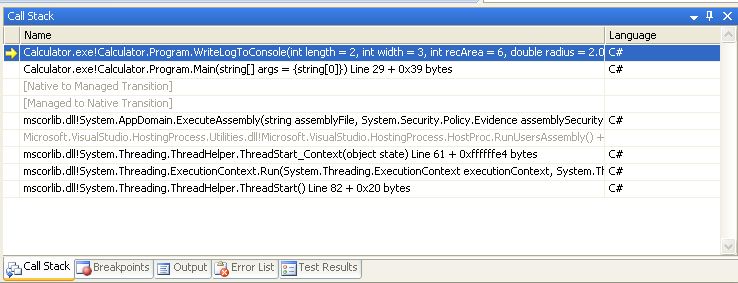
Visual Studio 2008 - Debugger Call Stack
Example of use:

In the following screenshot, I stepped in a line of code that calls the ToString() method on a Double type, this makes that the mscorlib pdb file is downloaded as well as the source code for the Double structure so that I can actually debug into the Double type and see its implementation as written by the .Net team. That is something I find really cool and I think has been missing for a long time!
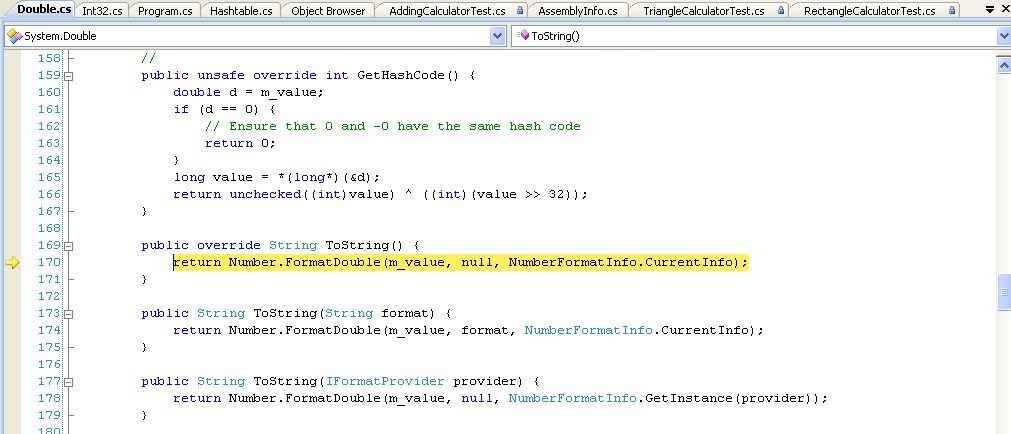
Visual Studio 2008 - Step In .Net Framework Source Code

Modules Window:

While you are debugging, you can bring up the Modules Wwndow by hitting the ALT+CTRL+U keys. This window shows all the dll loaded by the debugger and let you see which dll has debug information loaded and which does not. You can manually load debugging symbols from that window by right clicking on the library you want to load the symbols for and select the Load Symbols option.
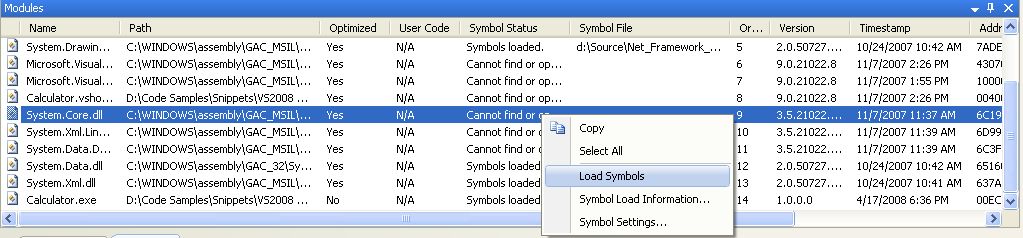
Visual Studio 2008 - Debugger Modules Window

List of assemblies currently available at the time of writing for symbol/source loading:

  • Mscorlib.dll
  • System.dll
  • System.Data.dll
  • System.Drawing.dll
  • System.Web.dll
  • System.Web.Extensions.dll
  • System.Windows.Forms.dll
  • System.XML.dll
  • WPF (UIAutomation*.dll, System.Windows.dll, System.Printing.dll, System.Speech.dll, WindowsBase.dll, WindowsFormsIntegration.dll, Presentation*.dll, some others)
  • Microsoft.VisualBasic.dll

For reference, here is a lengthier blog post by Shawn Burke with more information regarding .Net Framework Source Code debugging.

6. SQL Metal

SQL Metal is used to help implementing LINQ to SQL scenarios. It is a command-line utility (sqlmetal.exe).

SQL Metal can:

  • Generate source code and mapping attributes or a mapping file from a database.
  • Generate an intermediate database markup language file (.dbml) for customization from a database.
  • Generate code and mapping attributes or a mapping file from a .dbml file.

What is a mapping file?
A mapping file is an XML file to specify mapping between the data model of the database and the object model of the .Net code. It keeps the mapping code out of the application code which helps in keeping the code cleaner and leaner. Moreover, since it is XML (like any other .config file) it can be changed without having to rebuild the application code.

Check out MSDN documentation for more information about SQLMetal.

7. Visual Studio 2008 Product Comparison

Great comparison between the different functionalities available on each edition of Visual Studio 2008: http://www.microsoft.com/en-us/download/details.aspx?id=7940

Promoted property vs distinguished field – tutorial

First of all while many people talk about Promoted Property, the official term is Promoted Field, as defined in the MSDN documentation and also visible in Visual Studio’s BizTalk Schema Editor. I will nevertheless keep using the term most people are familiar with but I will consider both terms as synonyms.

Part 1 & 2 is a tutorial on how to create promoted properties and distinguished fields through the Schema Editor and the BizTalk’s API while part 3 is discussing about performance and differences between Promoted Properties and Distinguished Fields. You might only be interested in the 3rd part of this article if you already are a seasoned BizTalk developer.

1. Promoted Properties (Promoted Fields)

1.1 What are Promoted Properties?

Promoted Properties are Message Context Properties that are flagged as promoted; being promoted it allows the Message Engine to route messages based on their value, and being in the message context allows doing so without having to look at the message payload (which would be an expensive operation). Promoted Properties are the most common way to enable content-based routing. They are available to the pipelines, adapters, Message Bus and orchestrations.

Promoted Fields (= Promoted Properties) are PROMOTED in the message context by the receive pipeline when a message is received on a port. It is usually the job of the disassembler pipeline component such as the XML and Flat File disassembler but any custom pipeline component can also do it.

1.2 How to promote properties?

As stated in a previous post I wrote, BizTalk Messaging Architecture, message context properties are defined within a property schema and so all promoted properties must be defined in a custom property schema.

The action of promoting a message element to a promoted property creates a message context property that will contain the message element value and flags it as promoted so that it is available for routing.

There are 2 ways to promote a message element:

1. Quick promotion

Quick promotion is the simplest way to create a promoted property. Simply right click on the element’s node and choose Quick Promotion (see Fig 1.1). When choosing this option, Visual Studio will create a property schema called PropertySchema.xsd and add in the message’s schema a reference to the generated property schema.

Each property promoted this way will create a corresponding element in the property schema with the same name and type as defined in the message’s schema.

This means that when using quick promotion, the promoted property element name will always be the same as the message’s element name. If you have several elements with the same name, you might want to use manual promotion instead to avoid confusion or avoid having a property value overridden.

Biztalk promoted properties - quick promotionFig. 1.1 Quick Promotion

2. Manual Promotion

To manually promote a property, a property schema must be created with the elements that will hold the promoted property values. To create a property schema, you need to add a new item in your BizTalk solution, and chose Property Schema as the type of file (see Fig. 1.2). Once all the elements are created in the property schema, you associate the property schema with the message’s schema by right clicking on any node of the message schema and choose Show Promotions (see Fig. 1.3), then click on the Property Fields tab, click on the folder icon and finally select the property schema you just created (see Fig. 1.4). Note that it is actually possible to use more than 1 property schema per message. Anyhow, all promoted properties will end up being written in the message context and available for all BizTalk artifacts having access to message context.

Once the property schema is picked, you can start promoting message elements as promoted properties. To do so, click a message element and click on the add button, the Node Path column will display the XPath to the message element you are promoting and the Property column let you chose the promoted property that will contain the value of the message element at runtime (see Fig. 1.5).

An interesting side effect is that Manual Promotion let you have promoted properties with different names that the original message element name. This might be useful when a same property schema is used to hold promoted properties from different message types or when a message has different element with the same name.

Using Manual Promotion, it is also possible to promote message elements to promoted properties in the system property schemas shipped with BizTalk. To do so, just browse in the References sub-tree when picking the property schema (see Fig. 1.4).

BizTalk - Create a property schemaFig. 1.2 Manually create a custom property schema

BizTalk - Promoted Properties, manual promotionFig. 1.3 Manual Promotion

BizTalk - Promoted Properties, selecting a Property SchemaFig. 1.4 Selecting a Property Schema

BizTalk - Promoted Properties, selecting the promoted propertyFig. 1.5 Selecting the message element to promote and the promoted property that will contain the message element’s value.

1.3 How to promote properties through the BizTalk API?

As I already said in a previous post, BizTalk Messaging Architecture, context properties are stored in a property bag, an object which implements the IBaseMessageContext interface. This interface contains 2 methods which take the same parameters (a property name, an XML namespace, and value for the property).

a. The Write() method is used to write the property value into the message context without actually promoting it. It can be used to write distinguished fields or to write transient values. Calling the Write() method is NOT promoting a property, it is writing a property.

b. The Promote() method is used to write the property value into the message context but also flags the property as promoted so that it is available for routing. This is the method that needs to be called to promote a property.

To promote a property through the API, element name and namespace passed as parameter of the Promote() method must be those of the property defined in the property schema. They are most easily accessed by referencing the property schema assembly and using the properties on the class created for the property.

Example of promoting a property through an API call (copied from the BizTalk 2006 MSDN documentation: Processing the Message):

//create an instance of the property to be promoted
SOAP.MethodName methodName = new SOAP.MethodName();

//call the promote method on the context using the property class for name and namespace
pInMsg.Context.Promote(methodName.Name.Name, methodName.Name.Namespace,
“theSOAPMethodName”);

As I mentioned before, it is possible to promote properties to the BizTalk system property schema using Manual Promotion in Visual Studio’s Schema Editor for BizTalk. It is possible to achieve the same programmatically and as for other promotion, the name and namespace passed in parameter of the Promote() method is the one of the promoted property in the property schema, the system property schema namespace in this case.

//BizTalk system properties namespace
private const string BTSSystemPropertiesNamespace = “http://schemas.microsoft.com/BizTalk/2003/system-properties”;

//Promote the MessageType property
string messageType = “http://” + “schemas.abc.com/BizTalk/” + “#” + “Request”;
message.Context.Promote(“MessageType”, BTSSystemPropertiesNamespace, messageType);

2. Distinguished fields

2.1. What are distinguished fields?

Distinguished fields are message elements that are written into the message context. They differ with promoted properties in 2 main aspects:

  • They are not flagged as promoted in the message context and so are not available for routing by the Messaging Engine (adapters, pipeline…). Their typical use is instead for the orchestration engine.
  • They are not defined using a property schema.

Distinguished Fields are WRITTEN in the message context by the pipeline when a message is received on a port. It is usually the job of the disassembler pipeline component such as the XML and Flat File disassembler but any custom pipeline component can also do it.

Distinguished fields are useful when a message element value needs to be accessed from an orchestration. Instead of having the orchestration engine search through the message to evaluate an XPath expression (which can be resource-intensive on a large message), a distinguished field can be used. Distinguished fields are populated in the message context when the message is first loaded. Consequently, each time the distinguished field needs to be accessed, the orchestration engine will directly read it from the message context (a property bag object) instead of searching for the original value in the message with XPath. Needless to say that retrieving a single value from a property bag object is much faster than evaluating an XPath expression.

Distinguished fields also offer IntelliSense in the orchestration expression editor which enhances code readability.

2.1 How to create a distinguished field?

The main source of confusion between distinguished fields and promoted properties is that they are both created in Visual Studio’s Schema Editor through the Promote -> Show Promotions contextual menu option of a message schema’s element. Once the dialog box is open, make sure that you are on the Distinguished Field tab, select the message elements and click the Add>> and <<Remove buttons to add and remove distinguished fields (see Fig 2.1).

BizTalk - Creating Distinguished FieldsFig 2.1 Creating a Distinguished Field.

2.2 How to create a distinguished field through the BizTalk API.

Distinguished fields are written into the context using the Write() method on the IBaseMessageContext object. To be recognized as a distinguished field, the namespace of the property must be “http://schemas.microsoft.com/BizTalk/2003/btsDistinguishedFields”. Pipeline components delivered with BizTalk do not use those context properties. It is nevertheless possible to read/write distinguished field in the code of custom pipelines, as for any other context properties.

Example of writing a distinguished field through an API call (taken from the BizTalk 2006 MSDN documentation: Processing the Message).
//write a distinguished field to the context
pInMsg.Context.Write(“theDistinguishedProperty”,
“http://schemas.microsoft.com/BizTalk/2003/btsDistinguishedFields”,
“theDistinguishedValue”);

Would you use another namespace, it will result in writing a plain transient value in the property bag and won’t be recognized as a distinguished field by the orchestration engine.

//Write a transient value to the message context
message.Context.Write(“MyVariable”, “SomeNameSpace”, SomeData);

3. Considerations, similarities and differences between promoted properties and distinguished fields.

3.1 Performance considerations:

  • Promoted properties are limited to 255 characters for routing performance reasons. Properties that are simply written in the context (such as distinguished fields) are not limited in size but large properties decrease performance.
  • All Context properties (both Promoted and Distinguished Fields) are stored separately from the message in the Message Box Database. Consequently consuming more space in the BizTalk databases but more importantly incurs more load when persisting/reloading the message in/from the DB. Note that if tracking is turned on, Promoted Properties are also stored in the Tracking database.
  • Distinguished Fields cost less than Promoted Properties in terms of performance. Both Promoted and Distinguished Fields require the same overhead of writing their values to the context Field bag in the Message Box database, but Promoted Fields have the additional overhead of being written in BOTH to the Message Box context tables AND the subscription tables. Distinguished fields are not stored in the subscription table as they do not participate in routing.
    Promoted Fields have an impact every time a message is written in the Message Box because each Promoted Property that exists must be evaluated in a massive T-SQL union statement that builds the list of matching activation subscriptions. In short, the more Promoted Fields you have the more costly the subscription process is.

3.2 Other considerations

  • Both promoted properties and distinguished fields are populated when a Pipeline Disassembler Component parses a message and either Promotes or Writes the value to the message’s context.
  • Empty pipelines such as the Pass-through pipeline do not promote or write anything in the message context as it lacks a disassembler component.
  • Writing a value into the context with the same name and namespace that were used previously to promote a property causes that property to no longer be promoted. The write essentially overwrites the promotion.
  • Writing a property in the context having a null value deletes the context property altogether because null-valued properties are not permitted.

3.3 Distinguished and Property Fields Difference Summary.

  • Promoted Fields should be used for routing, correlation and/or tracking.
  • Distinguished fields should be used when a particular message element is commonly manipulated in one or more orchestration.

Here is a table outlining the main differences between both types of fields:

Promoted Fields (aka Promoted Properties) Distinguished Fields
Used for routing (subscription mechanism)
IsPromoted = true
Do not participate in routing
IsPromoted = false
Used for tracking Not used for tracking
Restricted to 255 characters No size limitation
Available for use in orchestrations Available for use in orchestrations
Require property schema Do not require property schema
Used by standard pipeline components Accessible only by custom pipeline component which would explicitly access them

4. References.

MSDN – The BizTalk Server Message
MSDN – Processing the Message
MSDN – About BizTalk Message Context Properties
Neudesic’s blog – Distinguished fields myths

Windows Process, .Net Application Domain and 2 GB limit on 32-bit Windows

A few weeks ago I heard some comments from a colleague about how .Net applications run and that “all .Net applications run in the same runtime (CLR) so that if you start 10 separate .Net applications, they would share together a single 2 GB limit on Windows 32-bit”. This of course not true and it gave me the idea to blog about the 2GB limit on 32-bit systems, Windows Process, .Net applications and the concept of .Net Application Domain.

2 GB limitation on Windows 32-bit.

32-bit Operating Systems are capped by the number of unique pointers that can exist at a time. On 32-bit processors, only 2^32 distinct addresses can exist. Would all these addresses be used, that would represent 4 GB of memory. On a Windows Operating System the memory address system is not a 1-to-1 relationship to the physical memory of your hardware otherwise you would be stuck with a maximum of 4 GB of addressable memory for the whole machine. This would include all the I/O address space, kernel memory and so leave much less actual memory for programmers to use.

This is why when we talk about memory, it is important to realize the distinction between the physical memory (RAM on the motherboard) and the Virtual Memory accessible through the Virtual Address Space. Note that actually, Virtual Memory is not the same as Virtual Address Space and that there are ways to use Virtual Memory without using the Virtual Address Space. I will nevertheless not go into these details; the important thing to remember is that Windows has a complex memory management system that enables the O.S. to use much more than 4 GB as a whole. The inner workings are not for the faint-hearted and are actually not of interest for most .Net programmers living in the managed world.

Check this blog post for a primer on memory management on Windows Operating System.

When Windows 32 starts a program, a 32 bit process using 32 bit size pointers is created and so the process has a maximum of 4 GB of addressable memory.
Windows will assign to the process a Virtual Address Space of 4 GB (2^32) split in two; 2 GB of user mode virtual address space and 2 GB of kernel mode virtual address space. The user mode virtual address space is the “memory” (read the virtual address space to be correct) available for your program to use.
This 2 GB user mode virtual address space limit is what is commonly called the 2 GB memory limit on Windows 32-bit.

/3 GB switch on 32-bit Windows

The /3GB switch changes the way the 4GB virtual address space is split up. With the /3GB switch, the split is 3GB of user mode virtual address space and 1GB of kernel mode virtual address space. It is nevertheless not recommended to use this option as it can bring unexpected bug from drivers and other kernel-mode processes which might expect to have 2 GB of kernel virtual address space available (not that a driver would ever need 2 GB, just that an older driver might expect to have addresses from 0x80000000 to 0xFFFFFFFF available).
See here and here for other problems that can arise when using the /3GB switch.

AWE

AWE does not give more virtual address space to a process. AWE stands for Address Windowing Extension and is a Microsoft API (Application Programming Interface) that allows a 32-bit software application to access more physical memory that it has virtual address space.
AWE enables programs to reserve physical memory as non-paged memory and then to dynamically map portions of the non-paged memory to the program’s working set of memory. This process enables memory-intensive programs, such as large database systems, to reserve large amounts of physical memory for data without having to be paged in and out of a paging file for usage.
To be clear, AWE can only be available on programs that actually use the AWE API, it is not an OS switch that can be turned on/off on any program.

Windows 64-bit

On windows 64-bit there is not 2 GB limit, the user mode virtual address space limit being 8TB. See here for reference.

Windows Process and Runtime Host

A Windows process is an instance of a program that is executing over the Windows layer. A process contains the executable code and data inside the memory reserved for it by the Operating System. There will be at least one thread executing instructions within the process but more in most cases.

Any program running on Windows is actually working within a process. If you open 2 instances of notepad, you can see that 2 processes running notepad.exe are visible under the Processes tab of the Windows Task Manager.

The concept of a Process exists for two main reasons:

  • To enable multitasking (time sharing), the different processes a CPU is running will have their states changing between running and waiting very quickly and so give the illusion to the end-user that all processes are running in the same time. This brings multitasking as well as scalability.
  • To provide boundaries between running programs so that a process cannot peak into another one and that erroneous code inside a process cannot corrupt areas outside of that process (so that a process cannot crash another one). This is brings security and stability.

The isolation between processes is achieved by making sure that any given unique virtual address space runs exactly into one process and not any other.

Runtime Host

.Net applications are compiled in CIL (Common Intermediate Language, formally called MSIL – Microsoft Intermediate Language), and then are JITed (Just-In-Time compiled) by the CLR (Common Language Runtime) into instructions directly understandable by the CPU (native code).
Here is an illustration of this 2 step compilation process:


This means that .Net applications are not Win32 applications and so cannot be executed directly by the Operating System. As any application running on Windows has to run through a Windows Process, a Windows Process called a Runtime Host will actually execute (host) the .Net Application. The Runtime Host first loads the CLR dll (a native Windows library – unmanaged code) which in turn loads the .Net application (managed code), JIT compiles it and runs it. The process thus effectively transitions the control of running the application from itself to the CLR.

There are 2 types of Runtime Host shipped with the .Net Framework, ASP.NET and Shell. Shell runs all Windows-type applications (Windows Form, Windows Service or Console App).

We can see that this concept actually adds a new layer between the .Net application and the Operating System. This layer, implemented by the CLR, is generically called a Virtual Machine and has OS-like features. It is an abstraction layer between the .Net application and the Operating System. As with Java, this permits any .Net Application to run on any Operating System as long as there is a CLR implemented for that OS.

2 GB limit for .Net applications

As the Runtime Host is a Windows Process, the .Net applications run by a Runtime Host is limited to the 2GB barrier on 32-bit Windows OS. Nevertheless, every Runtime Host has a separate 2 GB virtual address space limit. So would you launch 2 instances of a .Net application, each being a separate process in Task Manager, they would each have 2 GB limit.

.Net Application Domain

An Application Domain is the CLR equivalent of an Operating System’s process. As the Windows OS brings logical and physical isolation between Windows applications through the use of Processes, a single Runtime Host Windows Process can run several isolated .Net applications through the use of Application Domains. As explained before, Windows isolate processes by assigning different virtual memory address space to each process. In the .Net world, the memory is actively managed by the CLR and so the CLR can make sure that memory addresses are not shared between application domains, effectively isolating different Application Domains running in the same Runtime Host.

When a Runtime Host starts a .Net application, the CLR will create a default Application Domain to run the .Net application. As multiple Processes can run on a single OS, multiple Application Domains can run within the same Runtime Host.

An Application Domain is cheaper to create than a Windows Process and has relatively less overhead to maintain. It is thus more efficient to isolate .Net Application through Application Domains rather than Windows Processes. Application Domains are sometimes referenced as lightweight processes but strictly speaking, they are NOT processes.

To summarize, here is a list of advantages of having Application Domains within a Runtime Host Process (which are for most of them similar to the advantages of having Processes within an Operating System):

  • An Application Domain is a more lightweight mean to provide isolation between .Net applications than Processes.
  • A .Net application in an Application Domain can be stopped without affecting the state of another application running in a separate Application Domain.
  • A crash in an Application Domain will not affect other Application Domains neither the Runtime Host Process hosting the Application Domains.
  • Configuration information is part of an Application Domain scope, not the process’ scope.
  • Each Application Domain can have different security access levels assigned to them, all within the same Runtime Host Process.
  • Code in one .Net Application Domain cannot directly access memory in another Application Domain. If two .Net applications need to communicate across Application Domains, they need to use .Net Remoting to do so. In .Net 1.x, this kind of inter-process communication was expensive because the TCP/IP stack needed to be involved. In .Net 2.0, .Net Remoting supports named pipe remoting which is much more efficient. WCF in .Net 3.x has this feature as well.

List of BizTalk prerequesites redistributable CAB files

While I was installing BizTalk Server 2006 the other day, I decided to compile a list of links to the redistributable BizTalk prerequisite CAB file so that I do not have to search for it the next time I install BizTalk Server.

The BizTalk prerequisites CAB file is a compilation of all the prerequisites that are needed to install and run BizTalk Server.
The redistributable CAB file is different for different Windows versions (Windows XP, Vista, Server 2003, 64-bit or 32-bit) and languages (English, French, …). So, when chosing the prerequesite CAB file, make sure that it is the one matching your Windows Operating System version and language.

When installing BizTalk Server, the setup procedure gives you the choice to either automatically install the prerequisites from the web or to automatically install the prerequisites from a redistributable CAB file.
Choosing the redistributable CAB file options helps in speeding up the installation process and is necessary if the BizTalk server has a limited access or no access at all to the internet.

BizTalk Server 2006

For BizTalk Server 2006, the links to the redistributable prerequisites CAB files are listed in the BizTalk Server 2006 Installation and Upgrade Guides. The guides are MS Word documents containing links to all the prerequisites CAB files for all supported versions of the Windows Operating System.

BizTalk Server 2006 R2

For BizTalk Server 2006 R2, the links to the redistributable prerequisites CAB files can be found in the BizTalk Server 2006 R2 Installation and Upgrade Guides. Here again the guides are a bunch of different MS Word documents containing links to all the prerequisites CAB files for all supported versions of the Windows Operating System.

As BizTalk Server 2006 R2 is the current release of BizTalk Server 2006, the links to the prerequisites CAB files can also directly be found on the MSDN documentation site:
http://msdn2.microsoft.com/en-us/library/aa578652.aspx

For information purpose, here is a list of all requirements for BizTalk 2006 R2: http://download.microsoft.com/documents/australia/biztalk/post_event/BizTalkServer2006R2_SystemRequirements.pdf

Biztalk 64 bit high CPU utilization

I started to deploy BizTalk server 2006 64-bit edition on Windows Server 2003 64-bit in our production environment and we noticed an unusual high CPU utilization by the BizTalk host processes.

The symptoms were twofold:

1. The BizTalk 64 bit servers suffered from a high CPU usage (one server had its CPU usage constantly stuck at 100%). This happened even when the load on the server was low, in fact much lower than on other BizTalk Server 32 bit machines running the same applications on a similar hardware.
The reason for the server high CPU usage was that some BizTalk host processes had their CPU usage stuck at a high value even if the BizTalk application(s) run by the host would process very few messages or no message at all. Actually, the CPU usage for those hosts would still be stuck at a high value even if the BizTalk application(s) run by the host were stopped!

2. Even when the CPU utilization was showing 100%, the server was still processing messages as fast as you would expect from a server under little load. No messages were queued for processing and no orchestrations were dehydrated!

Those 2 points gave me the feeling that nothing could be wrong with the BizTalk server itself (by that I mean the BizTalk code and the BizTalk installation) as the same code is running fine on 32 bit servers and as the performance monitor readings did not match the actual facts.

I requested help from Microsoft Support and they guided me to the KB 943165 which has a hotfix solving the high CPU usage problem I encountered on BizTalk Server 64-bit edition.
This hotfix fixes a problem brought by the security bulletin MS07-040, a security update for the .Net framework which brings CPU usage spikes on BizTalk Server 64 bit (meaning that the problem is only for the 64 bit version of the .Net framework). For information, Microsoft Support told me that the problem is suspected to be caused by an infinite loop in CounterManager.RunCacheThread when System.Threading.ThreadAbortException is raised.

I should also add that I could not actually find a Windows update directly related to the bulletin MS07-040 in the list of updates installed on the server running BizTalk Server 64-bit. Nevertheless, my Microsoft Support contact told me that the version of mscorwks.dll (found in c:\WINDOWS\Microsoft.NET\Framework64\v2.0.50727) has a timestamp showing that it is later than the hotfixes issued by bulletin MS07-040 and that the problem should then also occur with any later version of the dll (as it is a code change from that version on that brings the problem).

To conclude, would you encounter the same symptoms I enumerated above, you will want the check the KB 943165 and contact Microsoft Product Support to see if your case is applicable for this hotfix. They will then email you the details to download the hotfix.

I installed this hotfix on all my BizTalk Server 2006 64 bit machines and all of them are running smoothly now 🙂